KDP Interior Margin Templates: The Key to Professional Book Layouts and Amazon Approval
Nothing derails a book launch faster than an unexpected rejection from Amazon KDP. You have spent weeks—or months—perfecting your manuscript, designing a compelling cover, and formatting your interior. Then you upload your file and receive a notification that your book has been rejected due to margin issues or content extending beyond the allowable area. The frustration is real, but it is also entirely avoidable. This is where KDP Interior Margin Templates come into play. These tools are not just another design accessory; they are a practical, proven solution for ensuring your book meets Amazon’s strict printing guidelines the first time.
Understanding what these templates are and how to use them can save you hours of rework and give you confidence that your file will pass KDP’s automated checks. In this article, we will explore what KDP Interior Margin Templates are, why they matter, and exactly how you can apply them to produce a book that looks professional and prints correctly every time.
What Are KDP Interior Margin Templates?
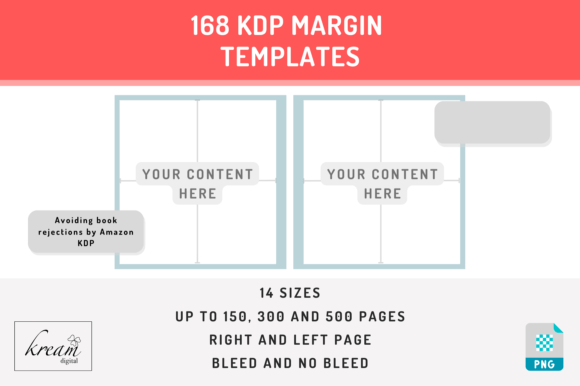
KDP Interior Margin Templates are PNG overlay files with transparent backgrounds designed to help you lay out the inside pages of your book correctly for Amazon’s print-on-demand requirements. They act as visual guides that you place over each page of your design software—whether you are using Canva, Adobe InDesign, Affinity Publisher, or another tool. The template shows you the safe area (typically marked with a light blue border) where all essential content such as text, headers, footnotes, and non-bleeding images must remain. Anything placed outside that border risks being cut off during trimming or flagged by KDP’s validation system.
These templates are tailored to specific trim sizes and page counts and come in both bleed and no-bleed versions. The trim sizes covered include the most popular options for KDP books: 5 x 8, 5.25 x 8, 5.5 x 8.5, 6 x 9, 7 x 10, 7.44 x 9.69, 7.5 x 9.25, 8 x 10, 8.5 x 11, 8.25 x 6, 8.25 x 8.25, 8.25 x 11, 8.27 x 11.69, and 8.5 x 8.5. Additionally, they are available for books up to 150 pages, 300 pages, and 500 pages, reflecting the fact that margin requirements shift slightly as the spine thickness changes.
The Core Problem: Why Books Get Rejected by Amazon KDP
Amazon KDP uses automated systems to check every uploaded interior file for print readiness. The most common rejection reasons relate to margins: content too close to the edge, insufficient bleed area, or critical elements like page numbers falling outside the safe zone. For a book without bleed, the rule is simple—nothing essential should appear in the outer 0.125 inches (or around 3.2 mm) of the page. For books with bleed, images and background colors must extend 0.125 inches beyond the trim line, but all text and crucial design elements still need to remain inside the safe margin.
Many self-published authors and designers underestimate how quickly these small measurement errors lead to rejections. A header that drifts a few millimeters too far, a decorative line that encroaches into the margin, or a page number placed too close to the edge can all trigger a rejection. When that happens, you must go back into your file, adjust every page, and re-export—a tedious and time-consuming process.
How KDP Interior Margin Templates Solve These Challenges
KDP Interior Margin Templates address this problem by giving you a clear, visual boundary to work within. Instead of guessing where the safe zone ends or trying to interpret abstract rulers and guides, you see exactly where your content must stay. The light blue border on the template indicates the maximum safe area. As long as you keep your text, essential graphics, and page elements inside that border, you eliminate the risk of margin-based rejections.
The templates also handle the asymmetry of left and right pages. On odd-numbered (right) pages, the inner margin (the gutter side) is slightly wider to accommodate binding. On even-numbered (left) pages, the outer margin is wider. The templates come with separate overlays for odd and even pages, so you can apply the correct one each time. This attention to detail ensures that your final PDF mirrors what KDP expects, whether your book is 100 pages or 450 pages.
Furthermore, because the templates are PNG files with transparent backgrounds, you can place them directly over your design without altering the artwork. You can see your content and the margin guide simultaneously, making adjustments intuitive. When you finish laying out a page, you simply delete the template layer and move on to the next.
Using the Templates: A Step-by-Step Practical Guide
Applying KDP Interior Margin Templates to your book project is straightforward, but attention to a few key steps makes the process seamless. Here is how to use them effectively.
Start by choosing the correct template for your book. You need to match three variables: whether your book uses bleed or no bleed, the exact trim size, and the page count range (up to 150, up to 300, or up to 500 pages). If your book is 6 x 9 inches with no bleed and 250 pages, you select the no-bleed template for 6 x 9 in the 300-page category. Using the wrong page-count range can introduce margin errors because the gutter width changes with spine thickness.
Open your design software and create a new document at your chosen trim size. Import the template PNG and place it on top of your entire page. For odd-numbered pages (1, 3, 5, etc.), use the right-side template overlay. For even-numbered pages, use the left-side template overlay. This ensures that the gutter margin is correctly positioned toward the spine.
Now design your interior page content. Keep all essential text, headers, page numbers, and critical visuals strictly within the light blue border. If you are creating a bleed book and want an image to extend to the page edge, you can let it cross the border and go all the way to the outer edge of the template. But remember: any text or element you do not want trimmed must stay inside the blue line.
After finishing a page, delete the template layer from that page and move to the next. Repeat this process for every page in your book. It sounds repetitive, but it ensures consistency across your entire interior.
Once all pages are complete, do a final check. Remove every template layer from the file. Save your book as a PDF with standard settings (PDF/X-1a or high-quality print PDF is recommended). Double-check that your images are at least 300 DPI and that your fonts are embedded. Finally, upload the PDF to KDP and use the online previewer to flip through every page. Look closely at margins, headers, and page numbers. If everything looks clean and inside the safe zones, you are ready to publish.
Choosing the Right Template for Your Unique Project
Not every book is the same, and KDP Interior Margin Templates accommodate a wide range of formats. A slim poetry collection of 80 pages at 5.5 x 8.5 will have different margin needs than a 400-page nonfiction guide at 8.5 x 11. Using a template that is matched to your specific page count ensures that the gutter margin is not too wide (which wastes space) or too narrow (which risks text disappearing into the spine).
For books without bleed, the templates keep all content within a defined safe zone and automatically account for the binding shift. For books with bleed, the templates show the extended area that must be filled with background images or colors. If you are designing a full-color children’s book or a photo-rich interior, the bleed templates are essential. If your book is text-heavy with no edge-to-edge images, the no-bleed templates are usually sufficient and easier to manage.
Popular trim sizes like 6 x 9 and 5.5 x 8.5 have the widest selection of templates because these sizes are common for fiction, memoirs, and business books. Larger sizes like 8.5 x 11 are ideal for workbooks, manuals, and textbooks. Square formats such as 8.5 x 8.5 are popular for cookbooks and portfolios. Whatever your genre or format, there is a matching template.
Who Benefits Most from These Templates?
Different users approach book layout with varying levels of experience, and KDP Interior Margin Templates serve them all. For first-time self-publishers who are unfamiliar with print margins, the templates provide a safety net that prevents common mistakes. For experienced designers working on multiple titles, the templates speed up the workflow because they eliminate the need to manually calculate margins for each new project.
Authors who prefer to design their own interiors using accessible tools like Canva or Google Slides often struggle with setting accurate margins. The PNG template overlay method works in virtually any software that supports layers, making it an inclusive solution. Professional book designers also use these templates as a starting point, especially when working with unfamiliar trim sizes or page counts.
Even if you outsource your interior design to a freelancer, providing them with the correct KDP Interior Margin Template helps ensure the final file meets KDP standards, saving you back-and-forth corrections. It is a small step that significantly reduces the risk of rejection.
Additional Tips for a Rejection-Free Upload
Using templates correctly is the biggest step, but a few extra precautions make the process even smoother. Always download the templates fresh from a reliable source to ensure they reflect current KDP specifications. Amazon occasionally updates its guidelines, and using outdated margins can lead to problems.
When you save your PDF, never compress images below 300 DPI. Blurry or pixilated images can cause rejection even if your margins are perfect. Also, check that your PDF includes all fonts, or that you have converted text to outlines if the software allows. Missing fonts can alter page layout and push content out of the safe zone.
Finally, use the KDP preview tool before submitting for review. Look at each spread, not just individual pages. The preview tool will show you how your book appears when two pages face each other, revealing any gutter issues. If content appears to disappear into the spine, adjust your layout on those pages. The templates account for this, but it never hurts to verify.
Conclusion
Rejection from Amazon KDP does not have to be a part of your publishing journey. With KDP Interior Margin Templates, you can approach your book layout with clarity and confidence. These templates translate Amazon’s complex printing requirements into a simple visual guide that works across trim sizes, page counts, and bleed preferences. By taking the time to choose the correct template, apply it correctly to odd and even pages, and verify your final PDF, you set yourself up for a smooth upload and a professional-looking book.
Whether you are publishing your first novel, a comprehensive guide, or a beautifully designed children’s book, margin templates are one of the most practical tools you can add to your workflow. They keep your content safe, your layout consistent, and your project on track. Use them diligently, and you will spend less time fixing rejections and more time celebrating your published work.