36 Editable Canva Templates KDP 2024: What to Check Before You Buy and How to Use Them Well
If you’ve been browsing for KDP interior options recently, you’ve likely come across the 36 Editable Canva Templates KDP 2024 pack. It promises a range of beautifully designed, customizable templates for planners, journals, trackers, and more. And it delivers on that promise — for many users. But like any tool, the results you get depend heavily on how you select and use it. A few overlooked details can turn a time-saver into a source of frustration. Let’s walk through what this pack actually offers, where people commonly go wrong, and how to get the most out of it without wasting time or money.
What’s Actually in the Pack?
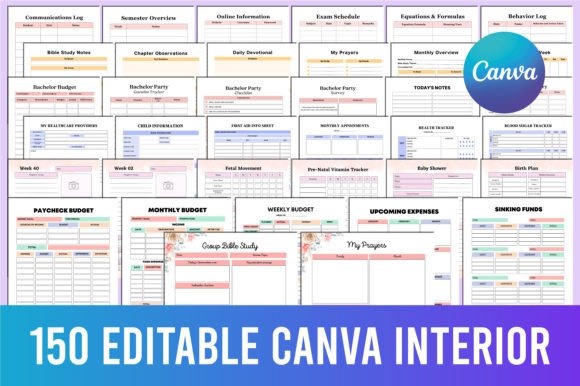
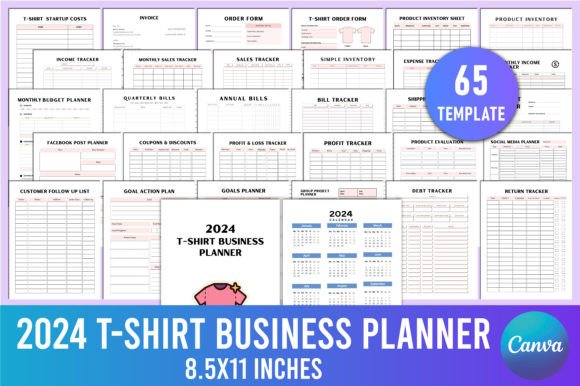
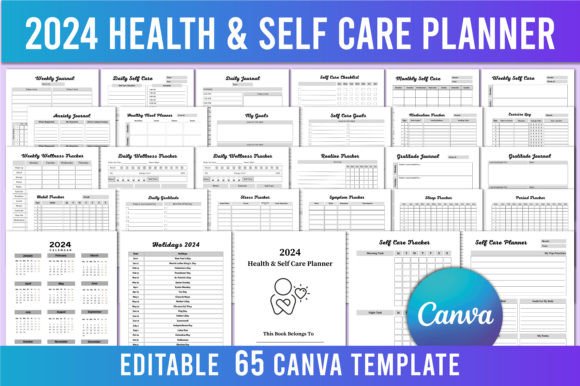
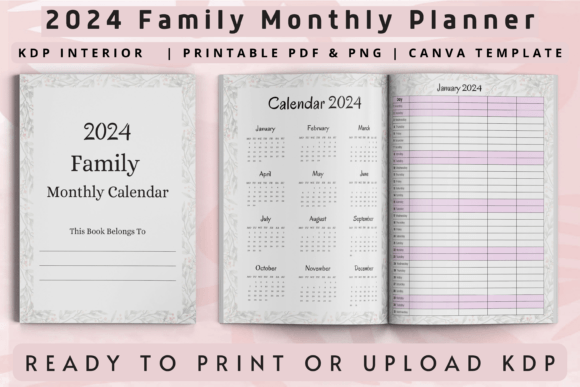
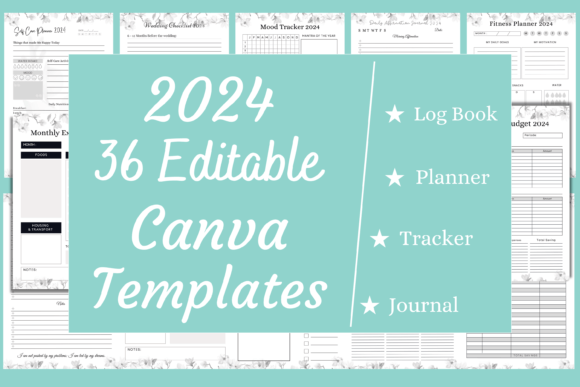
The 36 Editable Canva Templates KDP 2024 collection includes a variety of interior page layouts designed for print-on-demand publishing. You’ll find daily and weekly planner spreads, monthly trackers, habit logs, goal-setting worksheets, journal prompts, and several other functional page types. Each template is fully editable in Canva, meaning you can adjust text, fonts, colors, and graphic elements to match your brand or personal style. The designs range from minimalist and clean to vibrant and patterned, giving you flexibility across different niches.
This variety is useful for two reasons. First, it allows you to test different styles without needing to design from scratch. Second, it means you can create multiple products from a single purchase — a daily planner, a habit tracker, a wellness journal, and so on — by mixing and matching the templates that fit each project.
Common Mistake #1: Assuming All Templates Are Ready to Upload
One of the most frequent misunderstandings is that these templates come pre-formatted for KDP upload — bleed margins, trim lines, and all. In reality, the 36 Editable Canva Templates KDP 2024 pack gives you design files that need to be exported correctly. Many users skip the step of checking bleed and trim settings, which leads to rejected uploads or misaligned pages when printed.
Before you export, confirm your document dimensions match Amazon’s requirements for your chosen trim size. Typically, a standard 6x9 inch interior needs a 0.125-inch bleed on each side. In Canva, you can set this under File > View Settings > Show Print Bleed. Then export as PDF Print. This small step prevents a lot of rework.
Common Mistake #2: Over-customizing Without Testing
Because these templates are so editable, it’s tempting to change everything — fonts, colors, layout elements, icons. But altering too many components at once can introduce inconsistencies. I’ve seen users replace a font that doesn’t support special characters, or resize a graphic until it becomes pixelated. The result looks unprofessional and can hurt sales.
A better approach is to limit your changes to two or three key elements per template. Start with the color palette and primary font. Then adjust the heading style if needed. Leave the layout structure and graphic balance as-is until you’ve tested a few pages. Once you have a consistent look, you can apply it across the pack. This saves time and keeps the design cohesive.
Common Mistake #3: Ignoring the Difference Between Digital and Print
Another overlooked detail is how colors and fonts appear in print versus on screen. Canva’s default color space is RGB, which is fine for digital use, but Amazon requires CMYK for print interiors. If you don’t convert your file or at least check color profiles, your printed planner may look dull or have unexpected shifts — especially with vibrant or pastel shades.
To avoid this, use Canva’s PDF Print export option, which handles basic color conversion. If exact color accuracy matters (e.g., for branded products), consider exporting a CMYK PDF and reviewing it in a tool like Adobe Acrobat. Also, avoid thin white text on dark backgrounds, as it can bleed or become unreadable in print.
Common Mistake #4: Overlooking Page Numbering and Table of Contents
The 36 Editable Canva Templates KDP 2024 pack includes individual page templates, but it does not automatically sequence them into a book. A common error is assembling pages without adding page numbers, a table of contents, or section dividers. This makes the finished product feel incomplete and confuses customers.
After you finalize your template selections, take time to arrange them in a logical order. Add page numbers in the footer or header of each spread. Create a simple table of contents page that lists the sections (e.g., “Daily Planners,” “Habit Trackers,” “Goal Setting”). This small investment in structure transforms a collection of templates into a professional KDP interior.
What to Check Before You Buy
Before purchasing any pack — including this one — verify a few things:
- License terms: Does the pack allow commercial use? Can you use it for multiple KDP products? Some packs restrict usage to a single product or require attribution. Check the seller’s page carefully.
- File format: Are you getting editable Canva links, PDF files, or both? Editable links are what make customization possible. Ensure the pack provides those.
- Design consistency: Look at sample images of all 36 templates. Do they share a coherent style, or are they a mix of unrelated layouts? A cohesive set is easier to turn into a unified book.
- Customer support: Is there a way to contact the creator if you hit a problem? Some sellers offer guides or video tutorials. That can save hours when you’re stuck.
How to Avoid Wasted Time and Frustration
One practical strategy is to start with a single product, not all 36 templates at once. Pick two or three layouts that match your niche — for example, a daily planner spread, a weekly overview, and a habit tracker. Build a 100-page interior from those, add your own cover, and upload a test copy. This lets you validate the design and functionality before scaling.
Another tip: Keep a master copy of the original template pack. If you make changes that don’t work, you can return to the source instead of rebuilding from scratch. Use Canva’s “File > Make a Copy” feature to create separate drafts for each product you’re developing.
Realistic Example: Creating a Wellness Journal
Say you want to create a 120-page wellness journal using the 36 Editable Canva Templates KDP 2024 pack. Instead of randomly picking templates, you could:
- Select 3 habit tracker templates, 2 mood log layouts, and 2 journal prompt pages.
- Duplicate these selections to fill 120 pages, varying the order and repeating key layouts.
- Apply a consistent color palette of soft greens and neutrals, with a single heading font.
- Add page numbers, a table of contents, and section intro pages.
- Export with print bleed and trim marks, then proofread the PDF before upload.
This approach uses the pack’s variety while maintaining a focused, professional result. You avoid the temptation to use every template type, which would create a disjointed book.
Beyond the Templates: What Else Matters
Even with a great template pack, your KDP success depends on factors outside the interior design. Your cover needs to match the interior style and appeal to your target audience. Your book description should clearly state the interior specifications (page count, trim size, type of pages). And your pricing needs to account for printing costs — planners with many color pages can be expensive to produce.
The 36 Editable Canva Templates KDP 2024 pack is a solid foundation, but it’s not a shortcut to instant sales. Treat it as a starting point that saves design time, not as a complete solution. Combine it with thoughtful content planning, thorough testing, and attention to print specifications.
Final Practical Advice
If you’re new to KDP, buy this pack with a specific product idea in mind — not just “I’ll figure it out later.” Choose a niche you understand, select relevant templates, and iterate. If you’re experienced, use the pack to quickly prototype new products or to refresh existing ones without redesigning from scratch.
And always, always check your exported PDF page-by-page before hitting submit. A single misaligned element can ruin an otherwise polished interior. A few minutes of review is cheap insurance against a rejected upload or customer complaint.
The 36 Editable Canva Templates KDP 2024 pack can save you significant time and effort — if you use it thoughtfully. Avoid the common pitfalls, check the details that matter, and you’ll turn those editable Canva files into profitable, professional products that readers actually enjoy using.